Create a Quote: Difference between revisions
Jump to navigation
Jump to search
No edit summary |
|||
| Line 10: | Line 10: | ||
=== Enter Opportunity Details === | === Enter Opportunity Details === | ||
[https://youtu.be/sNeHScRdNy0 Video Overview of Starting a new Quote] | [https://youtu.be/sNeHScRdNy0 Video Overview of Starting a new Quote] | ||
{{#ev:youtube|https://www.youtube.com/watch?v=sNeHScRdNy0|600|right|Start New Quote|frame}} | |||
* Enter an Opportunity name: Typically <Main Item> - <Contact Name> | * Enter an Opportunity name: Typically <Main Item> - <Contact Name> | ||
| Line 16: | Line 17: | ||
* The end date should be the day the client returns the equipment. | * The end date should be the day the client returns the equipment. | ||
* Adjust the Days field to what will be quoted: | * Adjust the Days field to what will be quoted: | ||
* 1 Day Week-End on Student Productions | ** 1 Day Week-End on Student Productions | ||
* 3 Day Week on Commercial projects | ** 3 Day Week on Commercial projects | ||
* Custom duration for longer projects | ** Custom duration for longer projects | ||
* Set the dates under Scheduling section | * Set the dates under Scheduling section | ||
* Delivery: Client pick-up date in the 1st column only | ** Delivery: Client pick-up date in the 1st column only | ||
* In-Use: 1st day of use to last day of use | ** In-Use: 1st day of use to last day of use | ||
* Pickup: Date equipment is to return in the 2nd column only. | ** Pickup: Date equipment is to return in the 2nd column only. | ||
* If the client is coming to get the equipment, select Customer Collecting & Returning | * If the client is coming to get the equipment, select Customer Collecting & Returning | ||
* If we are delivering the equipment, in the venue section, select the appropriate venue where the delivery will happen. | * If we are delivering the equipment, in the venue section, select the appropriate venue where the delivery will happen. | ||
* Note that if we deliver, the TIME in the delivery & pickup fields is important and should be set according to the estimated delivery time. | ** Note that if we deliver, the TIME in the delivery & pickup fields is important and should be set according to the estimated delivery time. | ||
* If the venue does not exist, we need to add it as per [[Capturing Venue Information]]. | * If the venue does not exist, we need to add it as per [[Capturing Venue Information]]. | ||
* Once the details are entered, select Create Quotation. | * Once the details are entered, select Create Quotation. | ||
Revision as of 03:48, 20 July 2021
A potential order starts with a Quote. This covers creating the quote (or order) itself.
Populating the gear details is on a separate page
Create Quotation
- Navigate to Opportunities Screen
- Create New Quotation (or Create New Order if doing an order directly)
Enter Opportunity Details
Video Overview of Starting a new Quote
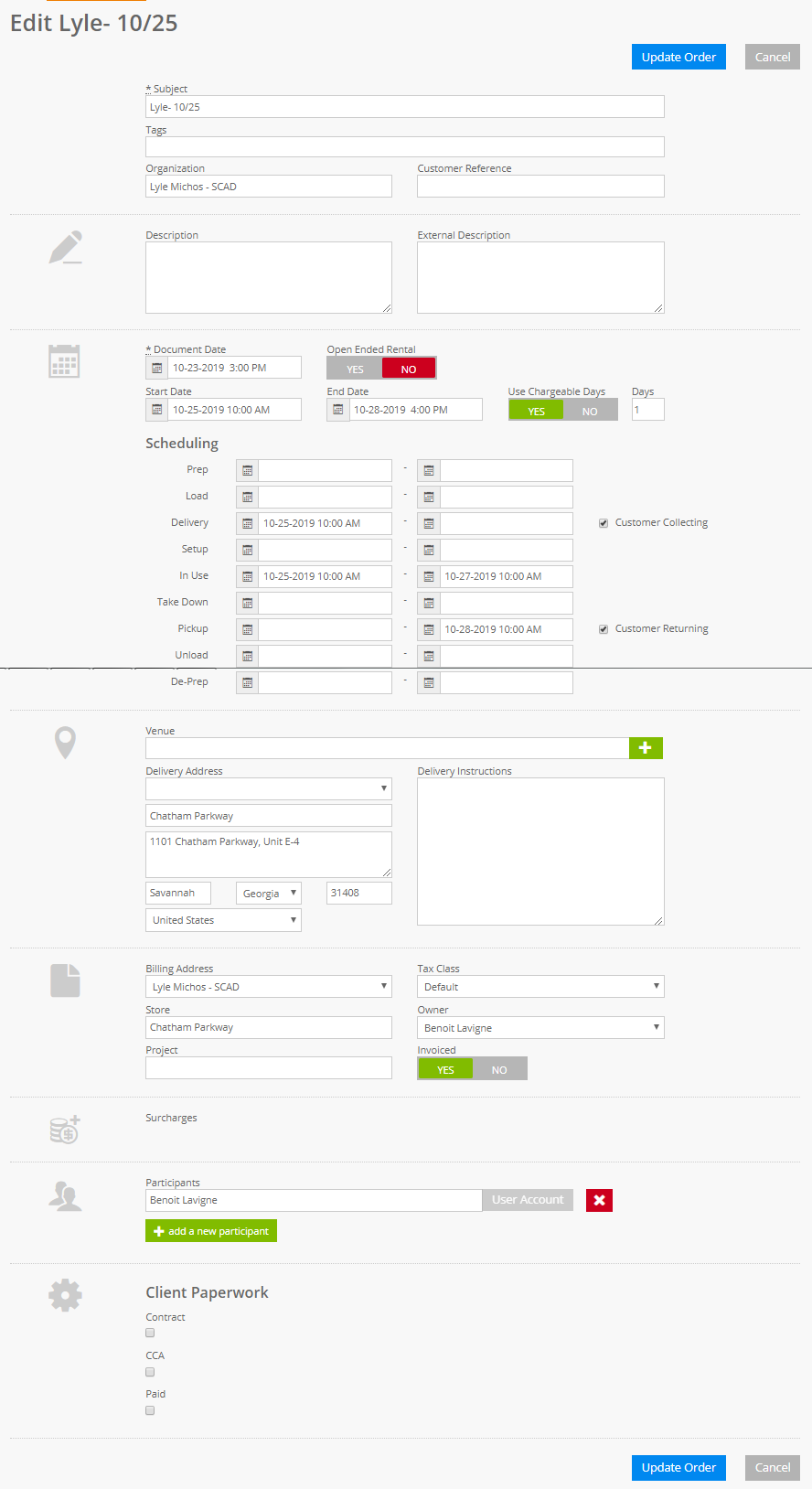
- Enter an Opportunity name: Typically <Main Item> - <Contact Name>
- Organization should be TEMP CUSTOMER at this stage. If it becomes an actual order, we will update this field with the real organization.
- The start date should be the day client will pick-up
- The end date should be the day the client returns the equipment.
- Adjust the Days field to what will be quoted:
- 1 Day Week-End on Student Productions
- 3 Day Week on Commercial projects
- Custom duration for longer projects
- Set the dates under Scheduling section
- Delivery: Client pick-up date in the 1st column only
- In-Use: 1st day of use to last day of use
- Pickup: Date equipment is to return in the 2nd column only.
- If the client is coming to get the equipment, select Customer Collecting & Returning
- If we are delivering the equipment, in the venue section, select the appropriate venue where the delivery will happen.
- Note that if we deliver, the TIME in the delivery & pickup fields is important and should be set according to the estimated delivery time.
- If the venue does not exist, we need to add it as per Capturing Venue Information.
- Once the details are entered, select Create Quotation.
- Proceed to the Opportunity Order Detail Form to enter the details of the order.
Here is a sample Add Quotation Screen:
