Create a Quote: Difference between revisions
Jump to navigation
Jump to search
mNo edit summary |
No edit summary |
||
| (3 intermediate revisions by the same user not shown) | |||
| Line 12: | Line 12: | ||
* Enter an Opportunity name: Typically <Main Item> - <Contact Name> | * Enter an Opportunity name: Typically <Main Item> - <Contact Name> | ||
* Organization should be ''' | * Organization should be '''The person contacting us'''. Once we have project details, this field might change. | ||
** You can quickly add an organization using the + icon in the Organization Field. Please make sure they don't exist already. | |||
* The start date should be the day client will pick-up | * The start date should be the day client will pick-up | ||
* The end date should be the day the client returns the equipment. | * The end date should be the day the client returns the equipment. | ||
* Adjust the Days field to what will be quoted: | * Adjust the Days field to what will be quoted: | ||
** 1 Day Week-End on Student Productions | ** 1 Day Week-End on Student Productions (pick-up Thursday or Friday, return Monday). | ||
** 3 Day Week on Commercial projects | ** 3 Day Week on Commercial projects | ||
** Custom duration for longer projects | ** Custom duration for longer projects | ||
* Set the dates under Scheduling section | * Set the dates under Scheduling section | ||
** Delivery: Client pick-up date in the 1st column | ** Delivery: Client pick-up date and time in the 1st column, pick-up time + 30 minutes in 2nd column. | ||
** In-Use: 1st day of use to last day of use | ** In-Use: 1st day of use to last day of use | ||
** Pickup: Date equipment is to return in the 2nd column only. | ** Pickup: Date equipment is to return in the 2nd column only. | ||
* If the client is coming to get the equipment, select Customer Collecting & Returning | * If the client is coming to get the equipment, select Customer Collecting & Returning | ||
* If we are delivering the equipment, in the venue section, select the appropriate venue where the delivery will happen. | * If we are delivering the equipment, in the venue section, select the appropriate venue where the delivery will happen or fill in address. | ||
** Note that if we deliver, the TIME in the delivery & pickup fields is important and should be set according to the estimated delivery time. | ** Note that if we deliver, the TIME in the delivery & pickup fields is important and should be set according to the estimated delivery time. | ||
* If the venue | * If the venue is likely to be a place we might go again, we need to add it as per [[Capturing Venue Information]] if it's not there already. | ||
* Once the details are entered, select Create Quotation. | * Once the details are entered, select Create Quotation. | ||
* Proceed to the Opportunity Order Detail Form to enter the details of the order | * Proceed to the Opportunity Order Detail Form to enter the details of the order (see [[Add Items to Opportunity]]) | ||
Here is a sample Add Quotation Screen: | Here is a sample Add Quotation Screen: | ||
[[File:Add-Opportunity.png|frame|center]] | [[File:Add-Opportunity.png|frame|center]] | ||
---- | |||
Updated: 11-01-2021 | |||
Latest revision as of 06:21, 2 November 2021
A potential order starts with a Quote. This covers creating the quote (or order) itself.
Populating the gear details is on a separate page
Create Quotation
- Navigate to Opportunities Screen
- Create New Quotation (or Create New Order if doing an order directly)
Enter Opportunity Details
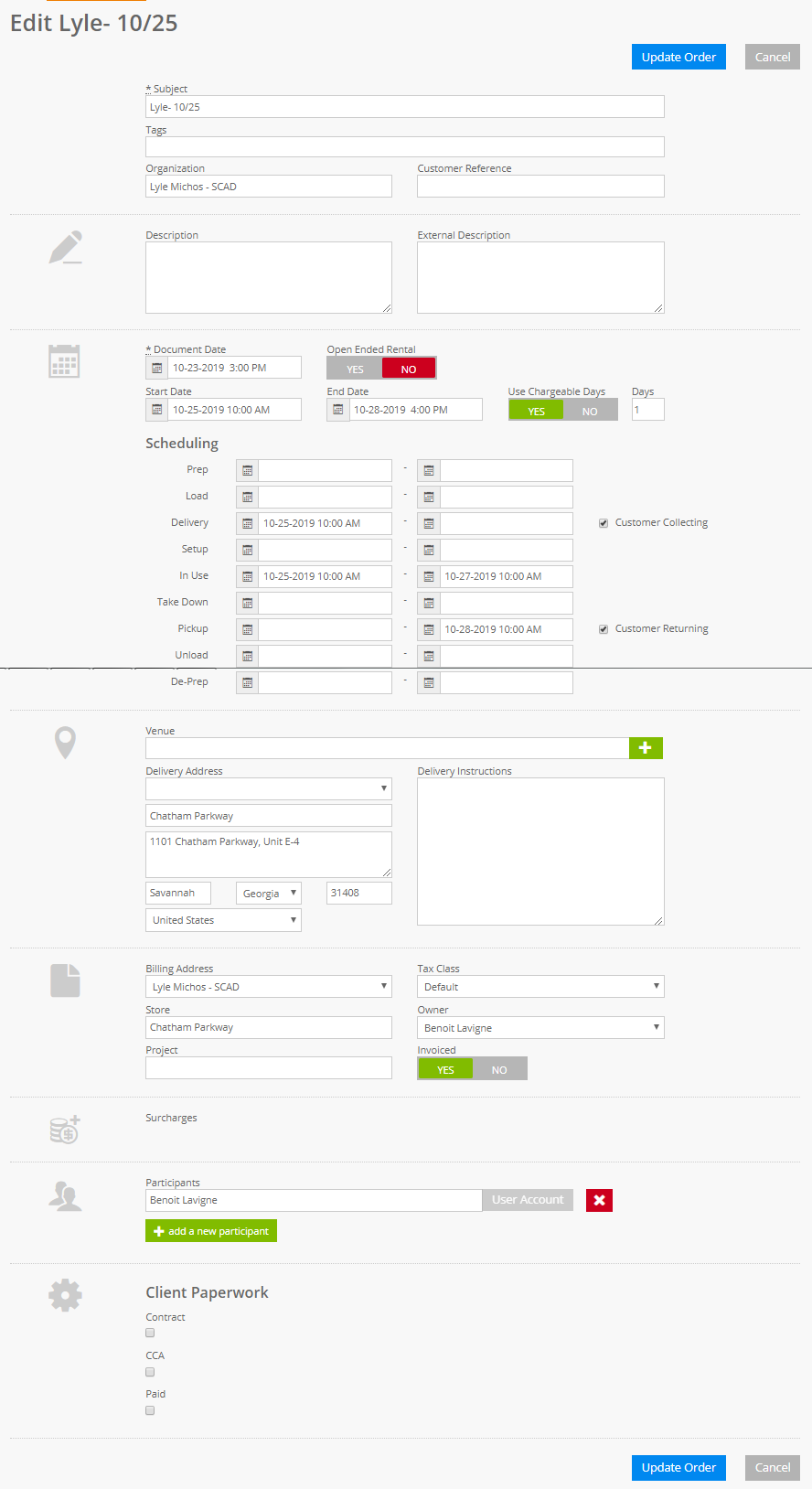
- Enter an Opportunity name: Typically <Main Item> - <Contact Name>
- Organization should be The person contacting us. Once we have project details, this field might change.
- You can quickly add an organization using the + icon in the Organization Field. Please make sure they don't exist already.
- The start date should be the day client will pick-up
- The end date should be the day the client returns the equipment.
- Adjust the Days field to what will be quoted:
- 1 Day Week-End on Student Productions (pick-up Thursday or Friday, return Monday).
- 3 Day Week on Commercial projects
- Custom duration for longer projects
- Set the dates under Scheduling section
- Delivery: Client pick-up date and time in the 1st column, pick-up time + 30 minutes in 2nd column.
- In-Use: 1st day of use to last day of use
- Pickup: Date equipment is to return in the 2nd column only.
- If the client is coming to get the equipment, select Customer Collecting & Returning
- If we are delivering the equipment, in the venue section, select the appropriate venue where the delivery will happen or fill in address.
- Note that if we deliver, the TIME in the delivery & pickup fields is important and should be set according to the estimated delivery time.
- If the venue is likely to be a place we might go again, we need to add it as per Capturing Venue Information if it's not there already.
- Once the details are entered, select Create Quotation.
- Proceed to the Opportunity Order Detail Form to enter the details of the order (see Add Items to Opportunity)
Here is a sample Add Quotation Screen:

Updated: 11-01-2021