Prep An Item: Difference between revisions
Jump to navigation
Jump to search


(Created page with "== Preparing an Item == You should be in the opportunity's '''Detail View''', under the '''Allocate''' Tab. Make Sure "Mark as prepared" is Yes. File:Checkout Header.jpg|fr...") |
No edit summary |
||
| Line 1: | Line 1: | ||
== Preparing an Item == | == Preparing an Item == | ||
All item prep & allocation is done in the opportunity's '''Detail View''', | |||
== Bulk Items == | |||
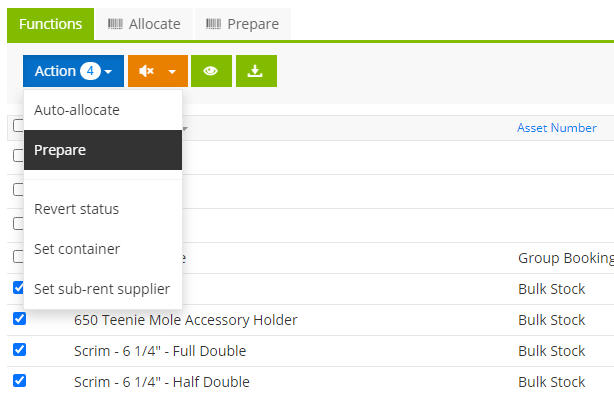
For Bulk Items, you should be in the "Functions" tab | |||
Select the item you want to prep and use the Action > Prepare. They will switch to Prepared. | |||
[[File:Bulk prep.jpg|frame|center]] | |||
== Serialized Asset == | |||
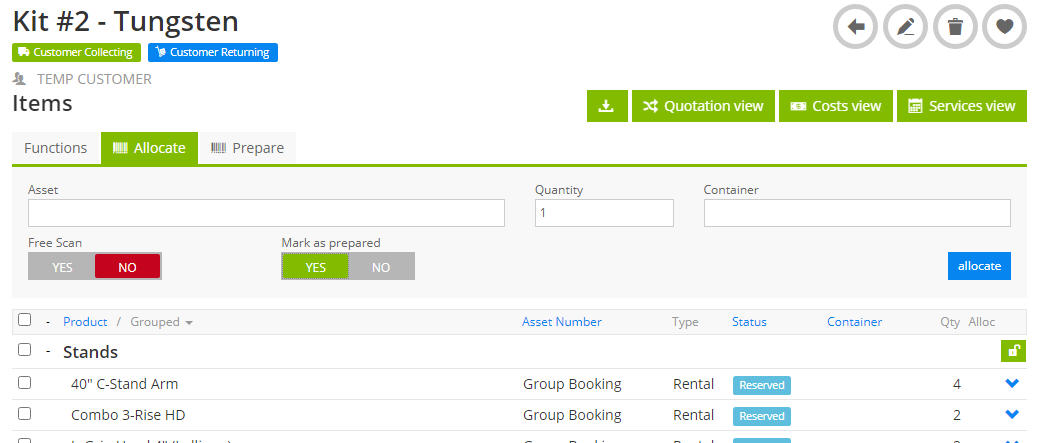
Anything serialized is done under the '''Allocate''' Tab. Make Sure "Mark as prepared" is Yes. | |||
[[File:Checkout Header.jpg|frame|center]] | [[File:Checkout Header.jpg|frame|center]] | ||
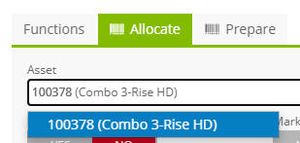
Scan (or type in) the asset tag | Scan (or type in) the asset tag | ||
[[File:Asset pick.jpg|frameless|none]] | [[File:Asset pick.jpg|frameless|none]] | ||
Revision as of 18:40, 4 August 2020
Preparing an Item
All item prep & allocation is done in the opportunity's Detail View,
Bulk Items
For Bulk Items, you should be in the "Functions" tab Select the item you want to prep and use the Action > Prepare. They will switch to Prepared.

Serialized Asset
Anything serialized is done under the Allocate Tab. Make Sure "Mark as prepared" is Yes.

Scan (or type in) the asset tag

The Asset is not prepared on the order:

Serialized Container
When you scan a serialized container, all the content of the container is also allocated in one fell swoop
